


Beginner's Guide to Editing Family Videos on a Phone: Simple Steps and Free Tools
Turn a messy camera roll into a short family video you'll actually rewatch, using one free phone app and a handful of simple editing steps.
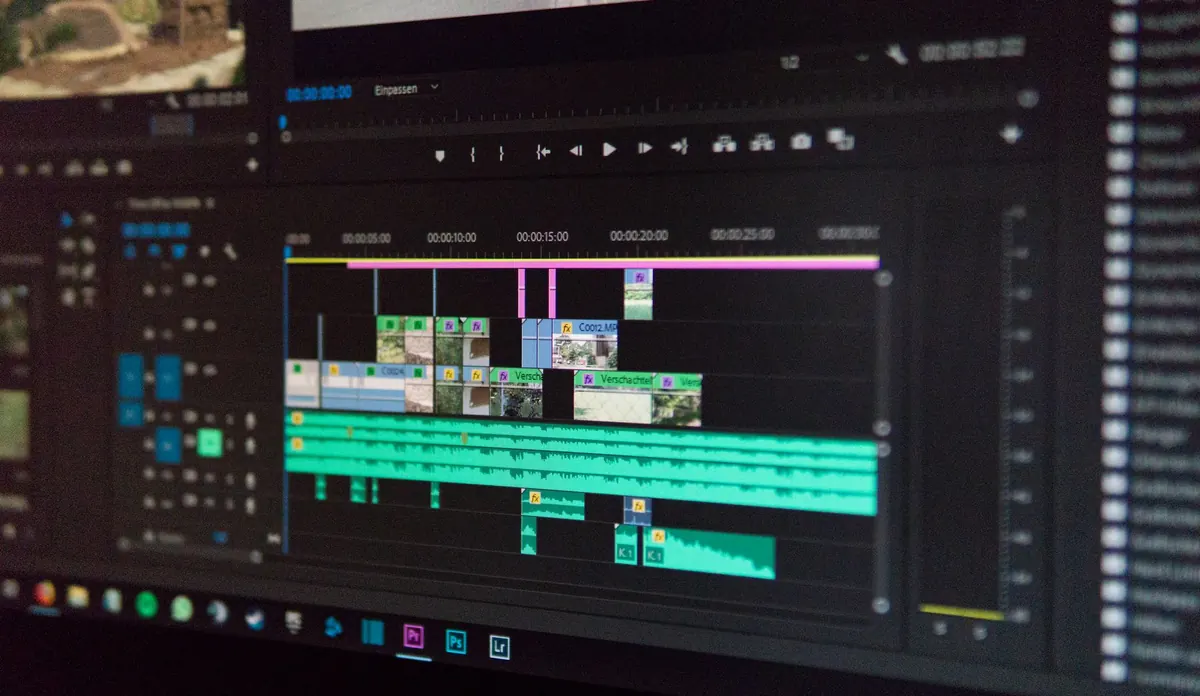
Somewhere in your camera roll there's a clip of a kid blowing out a birthday candle, ten blurry seconds of a dog stealing a cupcake, and thirty-seven seconds of your own pocket. Together, that footage is either a mess you'll never open again or a two-minute video your family watches every holiday. The difference is a little trimming and one free app — done on the phone you're already holding, in about the time it takes to drink a coffee while it's still warm.
Start With One Event, Not Your Whole Camera Roll
Nobody edits a year of footage. They quit somewhere around March. Pick a single event instead — a Saturday at the beach, the school concert, grandma's birthday — and work only on that.
Scroll through your photos and mark the fifteen to thirty clips that made you laugh or feel something. You're not deleting memories, just casting the video. Then do a brutal pass: the accidental recordings, the shots where someone walks toward the camera for twenty seconds, anything too dark to see.
The step that saves the most time happens before the timeline. Trim each clip's head and tail so it starts right as something happens. A three-second clip that opens on the candle flame beats a twenty-second clip where the first seventeen seconds are nothing at all.
Pick One Free App and Learn Three Buttons
CapCut, InShot, VN, and Apple's iMovie all have free versions that handle family footage easily. The editor built into Google Photos, Samsung Gallery, or Apple Photos can even do basic trimming and music if you want to start smaller.
Choose whichever app someone else in your house already uses, so you can ask for help. Then learn three things and ignore the rest: importing clips, trimming and splitting them, and exporting a finished file. Templates, stickers, and beat-synced transitions can wait until next year.
One caution: some free apps add a watermark or keep certain effects behind a paid tier, and those rules change. Run a short test clip through the export screen before you spend an evening building something you can't save cleanly.
The Five Edits That Do Most of the Work
Family videos that look polished are rarely complicated. They're just trimmed well. These five moves cover most of what you need:
- Cut the boring middle. The walk to the car, the wait in line, the search for parking — gone.
- Start late, end early. Begin a second before the action and stop right after it lands.
- Add one music track and keep it low. Use the app's own library or your own recordings. Songs pulled from streaming services can get a post muted or removed.
- Write one small title per scene. "Saturday morning." "The cake." "First swim." Keep it out of the way.
- Fix the light and the shake. A brightness slider and a stabilizer can rescue a clip you almost cut.
Give It a Shape: Beginning, Middle, Payoff
Random clips in a row feel like homework. Clips in a shape feel like a story, and you only need three beats: where you are, what happens, and how it ends.
A hike, for example: two seconds of shoes on gravel, the trailhead sign, a kid complaining about the hill, then the payoff — snacks at the top with the view behind them.
Your most important choice is the first three seconds. Lead with the cupcake theft, not the walk to the table. If nothing is happening in that opening moment, people scroll.
A short video people finish always beats a long one they close.
Sixty to ninety seconds is a comfortable length to share. Grandparents will happily watch five minutes; coworkers will not. When in doubt, cut your second-best clip.
Tame the Sound Before You Fiddle With Color
Bad audio is what makes phone video feel amateur. Wind, traffic, and a humming fridge do more damage than any color mistake. Work in this order:
- Mute the clips where nothing useful is said. A silent clip under music is perfectly fine.
- Lower the music until you can talk over it without raising your voice, and fade it in at the start and out at the end.
- Record a voiceover last. Sit in a quiet room, hold the phone a hand's width away, and speak slower than feels natural. Twenty seconds of your own narration does more than any effect.
- Turn on auto-captions if the video will be watched on mute, which most of them will.
Check the result twice: once on the phone speaker, once with earbuds. The two sound very different, and the quiet parts often disappear on one of them.
Keep the File Safe and the Quality High
Export at 1080p. That's plenty for phones, laptops, and most TVs, and it keeps files small enough to send. Choose 4K only if you shot in 4K and actually watch on a big screen.
Back up the original clips before you delete anything — cloud storage, a computer, or an external drive, whichever you'll actually keep up with. Edited files are for watching; originals are your archive and the only thing you can re-edit later.
Name the export so future-you recognizes it: 2025-08-Beach-Day1, not final_final_v3. Then watch the whole thing once at full volume before sharing. You'll catch the typo in a title and the clip you forgot to mute.
Make the Next One Faster
Three habits shave most of the pain off the next project. Keep a folder per event and drop clips in the night you shoot them, while you still remember why they mattered. Reuse a look — same title font, similar music, similar length — because consistency is what makes a yearly recap feel like yours. And edit in batches: twenty minutes once a month beats an hour every weekend you keep postponing.
While filming, help your future self. Hold still for five seconds before and after the moment, step closer instead of zooming, and shoot ten-second clips rather than two-minute ones. You'll spend far less time cutting later.
Post It Before It's Perfect
Your first edit will have a jump cut that's slightly abrupt and a music fade that ends early. Nobody in your family will notice, and the half-finished version sitting on your phone helps no one. Export it, send it to the group chat, and pay attention to what people react to — that tells you more about what to do next time than any effects menu. Family videos aren't supposed to be flawless. They're supposed to exist.
Photo: Alex Fu / Pexels